A FancyZones alternative you hold, not drag.
FancyZones is free, and it's good. Both apps snap windows into zones. The difference is how you start: FancyZones begins when you drag a window, Thumbtile begins when you hold a button.
Windows 10 and 11. No account, no card.
Which one should you pick?
Pick FancyZones if
Dragging a window with Shift held feels fine to you, or you'd rather move windows with Win and the arrow keys.
You want a window to span several zones, zones that overlap, or apps that reopen in the zone they were last in.
You want free and open source. It comes with Microsoft PowerToys.
Pick Thumbtile if
You'd rather not go back to the title bar. Hold a thumb button with the pointer anywhere over a window, point at a zone, let go.
You change layouts often. Scroll while holding to switch between halves, thirds, quarters and your own layouts.
You use an MX Master 4 and want to feel each zone, or you'd like to set up a layout by arranging windows and capturing them.
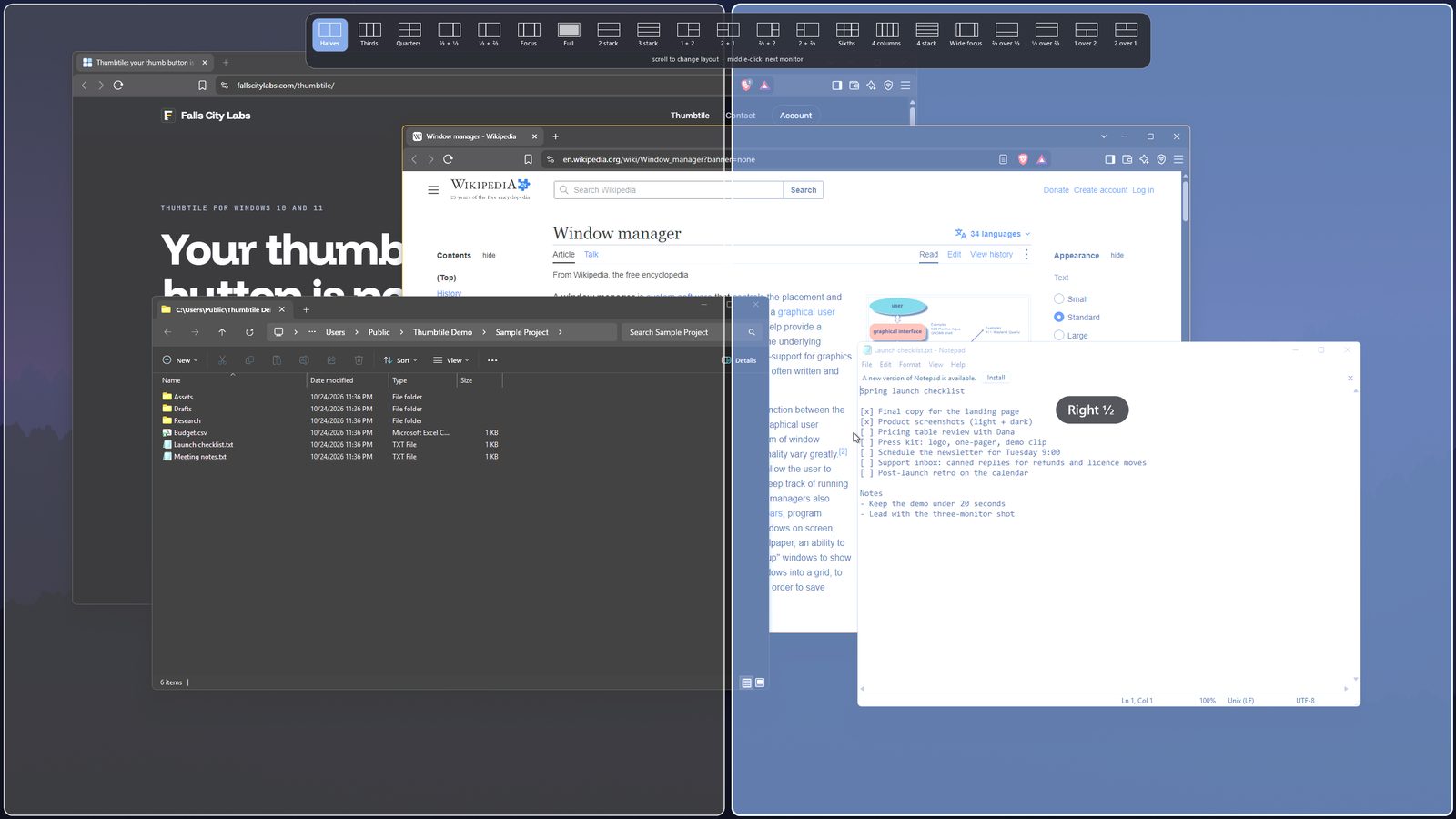
Thumbtile mid-hold. The pointer is in the middle of a window, not on its title bar.
What each one does.
| Feature | Thumbtile | FancyZones |
|---|---|---|
| Price | $5.99 once at the launch price, after a 7-day free trial. One key covers 3 PCs. | Free. Part of Microsoft PowerToys, which is open source. |
| Snapping with the mouse | Hold a thumb button with the pointer anywhere over the window, point at a zone, let go. No drag. | Drag the window, holding Shift by default. A setting lets a non-primary mouse button switch zones on mid-drag, and another shows zones on every drag. |
| Snapping with the keyboard | Hold a key such as Right Ctrl or Caps Lock instead of a button, then point with the mouse. | Win + arrow keys move the focused window between zones once you turn that on. No mouse needed. |
| Changing layout mid-snap | Scroll while holding. Works across the built-in layouts and your own, per monitor. | Mouse wheel while dragging (off by default, custom layouts only), or a Win + Ctrl + Alt + number shortcut. |
| Built-in layouts | 21 for landscape screens and 16 for portrait ones. | A set of templates you adjust by zone count. |
| Your own layouts | A split editor whose zones always fill the screen, plus Capture my windows: arrange apps by hand and save that as a layout. | A grid editor and a canvas editor where zones can be any size and can overlap. |
| One window across several zones | No. One zone at a time. | Yes. Hover the edge between two zones, or hold Ctrl to pick more. |
| Zones on every monitor | Always. Every screen shows its zones during a hold. | A setting. By default only the focused monitor shows zones. |
| Tap to maximize | Yes. A quick tap maximizes the window under the pointer, and another tap brings it back. | Not part of FancyZones. |
| Remembering where apps go | No. | Yes. It can open an app in its last zone and keep windows in their zones after a resolution change. |
| Leaving some apps alone | No list. It only acts while you hold the button, and it lets go of your buttons in full-screen games. | Yes. An exclusion list by app name. |
| Admin windows like Task Manager | Works as installed. | Works when PowerToys runs as administrator. |
| MX Master 4 haptics | Yes. A click at each zone. | No. |
| Command line | No. | Yes. A CLI to list and apply layouts. |
| Who makes it | Falls City Labs, a small independent studio. Closed source. | Microsoft and the PowerToys community. Open source. |
FancyZones details were checked against Microsoft's FancyZones documentation in November 2026 and Thumbtile's against version 1.2.0. Both apps change. If something here is out of date, tell us and we'll fix it.
Why the trigger matters.
With FancyZones the mouse path is: move to the title bar, press, hold Shift, drag to a zone, release. That works well, and plenty of people never think about it again.
It gets slower in three places. On a large or ultrawide screen the title bar is a long way from where your pointer usually is. On a second or third monitor you drag across the whole desk. And some apps have a thin title bar, or one crowded with tabs, that is hard to grab.
Thumbtile skips the grab. The window under your pointer is the one that moves, so the motion is: hold, point, let go. If that sounds like a small thing, FancyZones is probably all you need.
Good to know.
Is FancyZones really free?
Yes. FancyZones is part of Microsoft PowerToys, which is free and open source. If dragging a window with Shift held suits you, use it.
Can FancyZones snap with a mouse button?
Partly. FancyZones has a setting that lets a non-primary mouse button switch the zones on while you are already dragging a window. You still start by grabbing the title bar. Thumbtile starts from the button itself, with the pointer anywhere over the window.
Can I use Thumbtile and FancyZones together?
They use different triggers. FancyZones acts while you drag a window, and Thumbtile acts while you hold its button, so the two can run side by side. The 7-day trial is the easy way to check on your own setup.
Does Thumbtile need a Logitech MX Master?
No. Any mouse with Back and Forward thumb buttons works, and so does a key you hold, such as Right Ctrl or Caps Lock. The MX Master 4 adds a haptic click at each zone.
What does Thumbtile cost?
It is free for 7 days with everything unlocked, with no account and no card. After that, Thumbtile Pro is a one-time $5.99 at the launch price for up to three of your PCs, with a 30-day refund.
Try the other way to snap.
Seven days, everything unlocked. If you go back to FancyZones afterwards, that's a fine outcome.